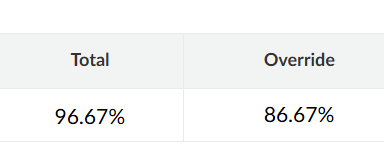
Final grade override enables you to enter a course grade that is different from the grade automatically calculated in the Gradebook. Because Canvas does not automatically calculate attendance penalties as a percentage of the final grade, faculty can use the Grade Override feature in the Canvas Gradebook to enter the adjusted final grade.
This guide walks you through the process of applying a grade override after you have calculated the appropriate attendance deduction according to the attendance policy. Using the grade override ensures that the student's final grade accurately reflects both their academic performance and any attendance-related penalty. Here's another version of this guide from Instructure, the parent company of Canvas.
- Open Gradebook in Canvas Course
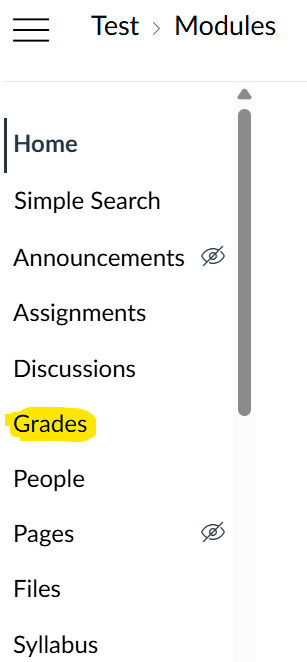
Open your course in Canvas, then click on "Grades" from the navigation menu.
- Enable Final Grade Override
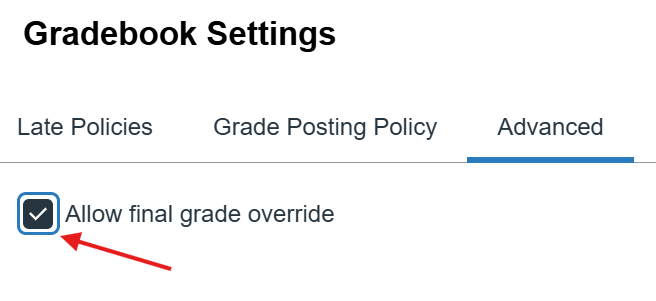
Click on the settings icon, then select the "Advanced" section


In the advanced setting window, click on the box to allow final grade override
- Apply Grade Penalty
Calculate the grade penalty. CIA's policy states that students who exceed the absence limit will receive a one-letter grade reduction from their final grade (e.g., A- to B-, B to C), but faculty may
impose additional penalties for absences. To implement the letter grade penalty, use the override column to enter the adjusted letter grade or percentage.Note: When a final grade override is entered as a letter grade, the percentage score for the assignment is the lower limit of the range assigned to that letter grade in the grading scheme. For example, your course grading scheme may designate a range of 86% to 89% for a B+ letter grade. Entering a B+ for a final grade override assigns a percentage of 86%. To ensure students receive a specific percentage for their final grade, enter the grade override as a percentage

For percentages, you should use a 10-percentage-point penalty as shown in the example below.