1. Log into your myCIA
Go to https://my.cia.edu/ICS/ and sign in with your student credentials.
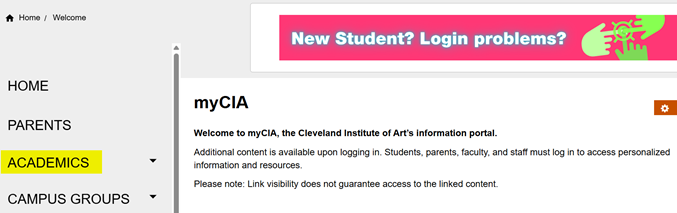
2. Open the Academics Menu
On the left-handed menu, select "Academics."
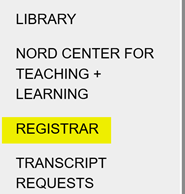
3. Select Registrar
In the Academics menu, click "Registrar."
4. Open Course Search
On the Registrar page, select "Course Search."

5. Search for Courses
In the Course Search screen, set both term fields to the correct term, then choose a department from the department menu and click Search.
- Search by department, not by course title - title search often won't return the course you're looking for.
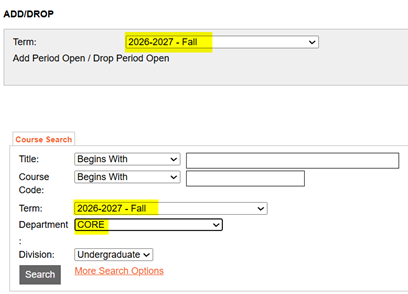
NOTE: The screenshot above shows an example: the term is set to Fall 2026-2027, and the department is set to CORE. Your own term and department will depend on what you're registering for. Some departments are grouped together in the dropdown, so the course code prefix won't always match the department name exactly.
For example:
- Art History (AH) — course codes start with AH
- Art History (AH) or Humanities — course codes start with AHHC
- Art History (AH) or Social Science — course codes start with AHSS
6. Review Your Search Results
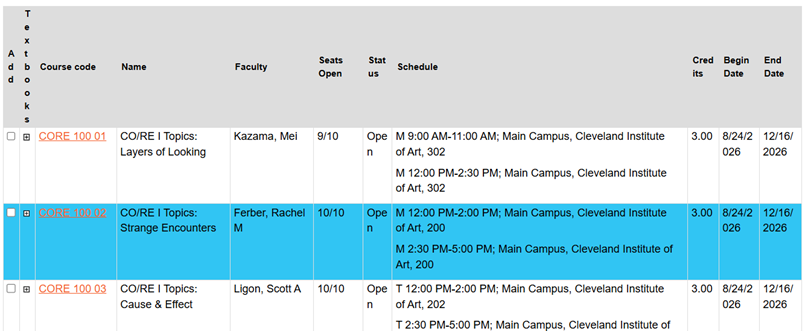
Each result row shows the course code, title, instructor, seat availability, status, and meeting schedule:
- "Seats Open" shows open seats out of total capacity (e.g., 9/10 means 9 of 10 seats are still open).
- "Status" shows Open or Full.
- Schedule shows meeting days, times, and room. Day codes: M = Monday, T = Tuesday, W = Wednesday, R = Thursday, F = Friday, S = Saturday.
7. View Course Details
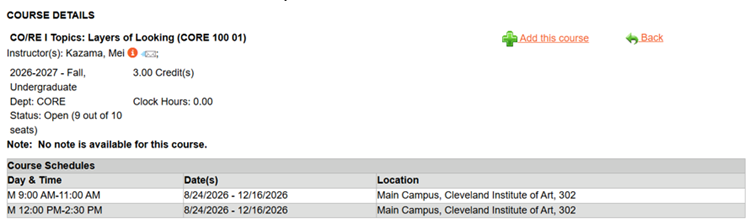
Click a course code link to see more details about that specific section.
8. Add a Course to Your Schedule
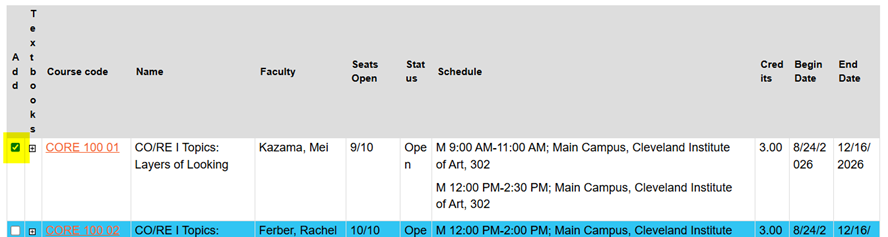
Click the Back link to return to your results (do not use your browser's back button). Check the box next to the course you want, then click "Add Courses" at the bottom of the page.
9. Confirm the Course Was Added
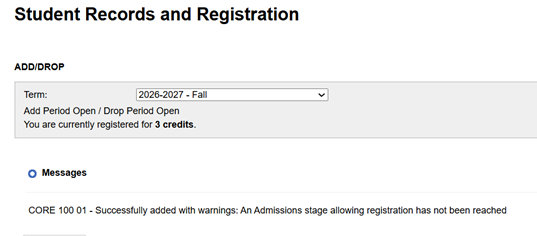
You'll see a success message once the course is added, or an error message if something went wrong. Use Course Search again on the same page to keep adding courses.
10. Continue Adding Courses
Repeat the search steps above for any other courses you need. When you're ready to add them, you can check the box next to multiple courses at once, then click the "Add Courses" button a single time to add them all together.
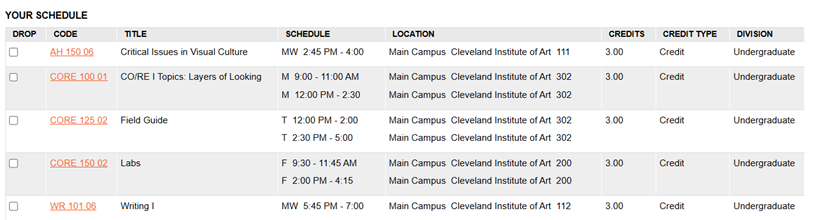
11. Review Your Full Schedule
Your complete class schedule appears on the Student Records and Registration page, below the Add/Drop section.